globetrotter
Member
- Joined
- 7 Jan 2011
- Messages
- 92
Heres a downloadable program - complete SNCF timetables and train connections for the whole of France. It even offers a complete list of arrivals or departures every train to or from every station. Yet very few people, even in France, know about it.
I was formerly using it with Windows XP and more recently I have it working perfectly with Windows 7 64.
Heres the procedure, its complicated if you have Windows 64 bit:
Download the program (its known as RIHO its free) from here:
http://www.evenement.sncf.com/sncf/riho/windows.html (Télécharger le fichier HORAIRES.EXE)
Note that there is a PC and a MAC version and that the timetables on this SNCF site are out of date (at time of posting, anyway). I know nothing about the MAC version and have no experience trying to install it in 32 bit versions of Windows 7 (or Vista).
Then add the latest updated schedules (valid until July 2012) from here:
http://info-rail.fr/download/download-60+donnees-sncf-hiver-2011-2012.php
Having installed the RIHO program, now find the subdirectory in which the winter schedules appear (Hiver-GL). Copy over into that subdirectory the new files downloaded from the latest schedules. That is what I did and it worked for me. The program has a mise a jour to update automatically, but I think the update link is broken.
Before you do any of the above, please note carefully:
This is a program originally written I think for Windows 3.1 or Windows 95.
It runs only in a 640x480 window that cannot be enlarged. Because of the small window, youll often need to click on the + or buttons to display more information.
It is a miracle that it survives today. It was supposed to have been killed off in 2011, but was reprieved after a campaign.
Its primitive in appearance by todays standards but very functional
No fare information of any kind, only timetables and connections
If you have a 64 bit version of Windows 7, although its been updated since, this program CANNOT be installed directly as its a 16 bit program from the mid 1990s.
There might be other solutions instead of Virtual XP but those are outside the scope of this posting. It seems it works with 32 bit Windows 7 and Vista, but I have no experience.
Now the good news:
Every train is listed, every station, including TGV
Language can be set to English, German Italian or Spanish instead of French
Its robust and seldom gives trouble even under Windows 7
The train information appears highly accurate and there are updates at intervals
It includes long distance trains and cross border direct trains from major cities and towns outside France (e.g. Barcelona, Zurich, Rome, but also small towns like Figueras, Bruges etc.) but of course only direct trains continuing into or out of France to or from that town will appear, not any connecting services that require changing trains.
You can set a favourite starting station (e.g. Paris)
It can show all stations between points that the train stops at en route with the arrival and departure times. This, along with an SNCF map, is very useful for making connections.
It knows about which departures are in Period Bleu and which are in Period Blanc
The interesting bit - if you have Windows 7 or Vista (64 bit) it CAN still be used. I have Windows 7 64 bit and I have had this program running for 2 years now with timetable updates twice a year. It works nicely in XP, so XP users need not concern themselves with the following except, perhaps, the update procedure.
In Windows 7 64 bit versions (and Vista) you are going to require [= must have] Windows 7 Professional or Ultimate as you are going to need Virtual XP (and that may require a BIOS update or not be possible depending on the age of your computer). It may help to increase virtual memory available to Virtual XP to say 1GB (a tedious procedure). Once you have got that far, this is what you do despite what it says on the SNCF site:
The program installs from Horaires.exe (SNCF link) with obsolete timetables from 2011.
Next, unzip the timetable updates (second link) and install them into a separate subdirectory. Then copy over all the files to the HIVER-GL subdirectory, overwriting earlier files. You might need to click on Services to select the correct timetable (winter or summer).
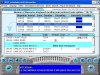
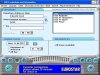
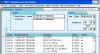
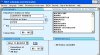
If you travel a lot in France or live there, this is definitely worth the trouble. With RIHO, you can put together some wonderful train journeys (like Clermant Ferrand to Nimes, see my screenshots). Everything RIHO uses is stored locally, no internet connection needed so you can use it even on the train. And the program is fast, often almost instant.
Ive included a number of screenshots. I found that I was not able to add two more, a primitive map included in the program and the detailed itinerary showing arrival & departure times from all intermediate stations. I might add them later.
On my computer I have set up a link in my sidebar to directly run the program from Windows 7 with a single mouse click. Once RIHO is installed and working, go to the Start Menu and click on Windows Virtual XP. Click on Virtual XP Applications and then on SNCF, then right click on SNCF Schedules (XP Mode) and send to Start Menu or Taskbar. With one click you can run the program directly from within Windows 7.
Store the links somewhere so that when the new timetables are released around June you know where to search for them. At that time, youll be updating the ETE-GL subdirectory.
Bon voyage.
I was formerly using it with Windows XP and more recently I have it working perfectly with Windows 7 64.
Heres the procedure, its complicated if you have Windows 64 bit:
Download the program (its known as RIHO its free) from here:
http://www.evenement.sncf.com/sncf/riho/windows.html (Télécharger le fichier HORAIRES.EXE)
Note that there is a PC and a MAC version and that the timetables on this SNCF site are out of date (at time of posting, anyway). I know nothing about the MAC version and have no experience trying to install it in 32 bit versions of Windows 7 (or Vista).
Then add the latest updated schedules (valid until July 2012) from here:
http://info-rail.fr/download/download-60+donnees-sncf-hiver-2011-2012.php
Having installed the RIHO program, now find the subdirectory in which the winter schedules appear (Hiver-GL). Copy over into that subdirectory the new files downloaded from the latest schedules. That is what I did and it worked for me. The program has a mise a jour to update automatically, but I think the update link is broken.
Before you do any of the above, please note carefully:
This is a program originally written I think for Windows 3.1 or Windows 95.
It runs only in a 640x480 window that cannot be enlarged. Because of the small window, youll often need to click on the + or buttons to display more information.
It is a miracle that it survives today. It was supposed to have been killed off in 2011, but was reprieved after a campaign.
Its primitive in appearance by todays standards but very functional
No fare information of any kind, only timetables and connections
If you have a 64 bit version of Windows 7, although its been updated since, this program CANNOT be installed directly as its a 16 bit program from the mid 1990s.
There might be other solutions instead of Virtual XP but those are outside the scope of this posting. It seems it works with 32 bit Windows 7 and Vista, but I have no experience.
Now the good news:
Every train is listed, every station, including TGV
Language can be set to English, German Italian or Spanish instead of French
Its robust and seldom gives trouble even under Windows 7
The train information appears highly accurate and there are updates at intervals
It includes long distance trains and cross border direct trains from major cities and towns outside France (e.g. Barcelona, Zurich, Rome, but also small towns like Figueras, Bruges etc.) but of course only direct trains continuing into or out of France to or from that town will appear, not any connecting services that require changing trains.
You can set a favourite starting station (e.g. Paris)
It can show all stations between points that the train stops at en route with the arrival and departure times. This, along with an SNCF map, is very useful for making connections.
It knows about which departures are in Period Bleu and which are in Period Blanc
The interesting bit - if you have Windows 7 or Vista (64 bit) it CAN still be used. I have Windows 7 64 bit and I have had this program running for 2 years now with timetable updates twice a year. It works nicely in XP, so XP users need not concern themselves with the following except, perhaps, the update procedure.
In Windows 7 64 bit versions (and Vista) you are going to require [= must have] Windows 7 Professional or Ultimate as you are going to need Virtual XP (and that may require a BIOS update or not be possible depending on the age of your computer). It may help to increase virtual memory available to Virtual XP to say 1GB (a tedious procedure). Once you have got that far, this is what you do despite what it says on the SNCF site:
The program installs from Horaires.exe (SNCF link) with obsolete timetables from 2011.
Next, unzip the timetable updates (second link) and install them into a separate subdirectory. Then copy over all the files to the HIVER-GL subdirectory, overwriting earlier files. You might need to click on Services to select the correct timetable (winter or summer).
If you travel a lot in France or live there, this is definitely worth the trouble. With RIHO, you can put together some wonderful train journeys (like Clermant Ferrand to Nimes, see my screenshots). Everything RIHO uses is stored locally, no internet connection needed so you can use it even on the train. And the program is fast, often almost instant.
Ive included a number of screenshots. I found that I was not able to add two more, a primitive map included in the program and the detailed itinerary showing arrival & departure times from all intermediate stations. I might add them later.
On my computer I have set up a link in my sidebar to directly run the program from Windows 7 with a single mouse click. Once RIHO is installed and working, go to the Start Menu and click on Windows Virtual XP. Click on Virtual XP Applications and then on SNCF, then right click on SNCF Schedules (XP Mode) and send to Start Menu or Taskbar. With one click you can run the program directly from within Windows 7.
Store the links somewhere so that when the new timetables are released around June you know where to search for them. At that time, youll be updating the ETE-GL subdirectory.
Bon voyage.